
We support the following file types for uploading payslips: XML, CSV, PDF and by using our API.
We permit multiple versions of CSV, PDF and XML files, please contact us for more information.
You can upload payslips from the Agency Dashboard by pressing UPLOAD | PAYSLIPS. You will then be taken to Payroll Uploads screen. From here press the UPLOAD button. You will then be given the option to upload a single file or Multiple files.
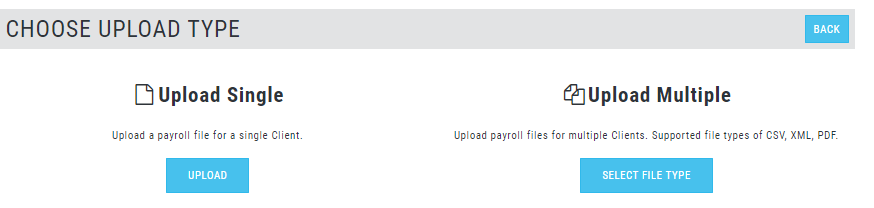
If you select the Upload Single option, you will be asked to select the client. On the next screen you will be asked to select the Payroll file from your device. You can do this by pressing BROWSE. Depending on how the client has been created on PayDashboard, we will expect the relevant file type to be uploaded. For example if SAGE has been selected as the Payslip Source, we will expect to see a Sage CSV file uploaded. Once the file has been selected press the UPLOAD button.
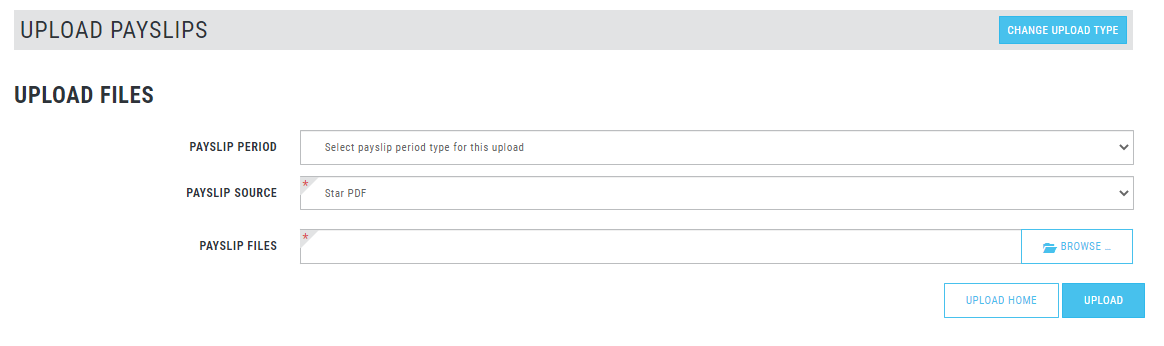
If you select the Upload Multiple option, you will first be asked to confirm the file type you are uploading (CSV, XML or PDF). If you select CSV or XML you will then follow the steps documented in the above paragraph. You you have selected PDF you will be taken to the below screen asking you to confirm your payslip period and source, you will then be able to select the files from your device by pressing the browse button. Once the files have been selected press the UPLOAD button.
 You will then by taken back to the Payroll Upload screen whilst the file is uploaded to us. You will see the upload under the IN PROGRESS heading. Once uploaded the status icon will change to WAITING FOR CONFIRMATION. From here, click on the clients name, then you can verify the data that has been uploaded. Please be sure to check for any Validation errors by clicking the VALIDATION tab. Here we list errors and warnings that you will need to be aware of. Please note warnings are advisory messages and will not prevent the individual payslip from being uploaded. Errors will prevent the payslip being generated.
Once you have verified the data is correct press the CONFIRM button. You can ABANDON the upload if required.
After clicking CONFIRM you will be asked to set the required publish date and if notification emails to employees should be sent. The emails will be sent around 00:00 UTC on the publish date. When ready press PUBLISH. You will be taken back to the Payroll Upload page whilst the new Payslips are generated, when this is done, they will be listed under the PROCESSED heading tab.