
Once you have purchased a plan a client/employer user will have access to send a communication to their employees by following the below steps:
From the Employer Dashboard press DOCUMENTS | COMMUNICATIONS.
On the next page you can select the communication you would like to send as per the screenshot below:

Sending a message:
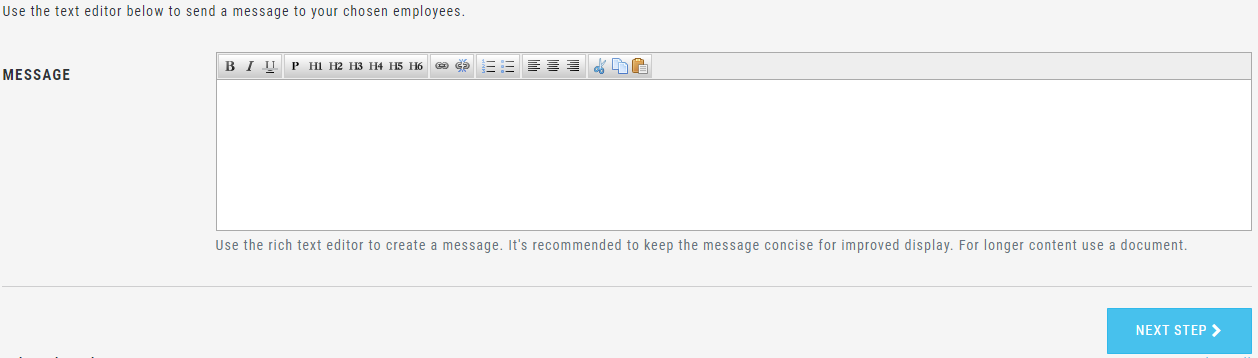
If you select Message you will see a text box which allows you to enter your message and format as required.
Sending a document:
If you select Documents you will be given the option to select a document from your device which you can upload and send to employees.

Sending a Message & Documents:
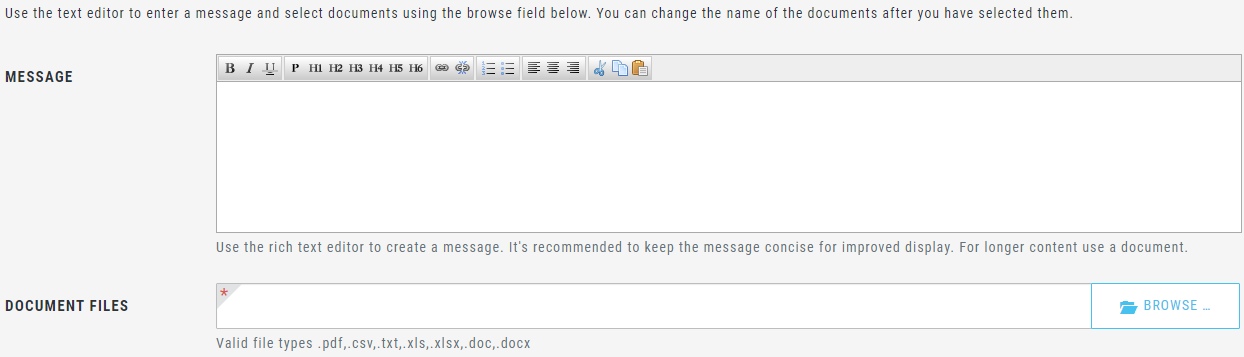
If you select Message & Documents you will be given the option to write a message and also upload a document.
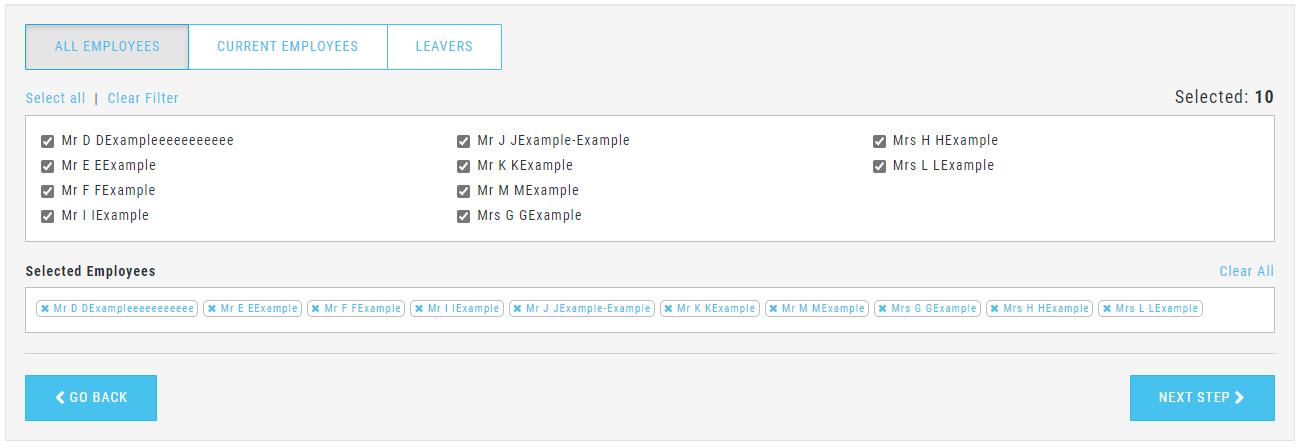
Next you can select the employees who you would like to receive the communications, these can be filtered based on all employees current employees, leavers, and based on departments (if your payroll provider utilises this in their payroll).
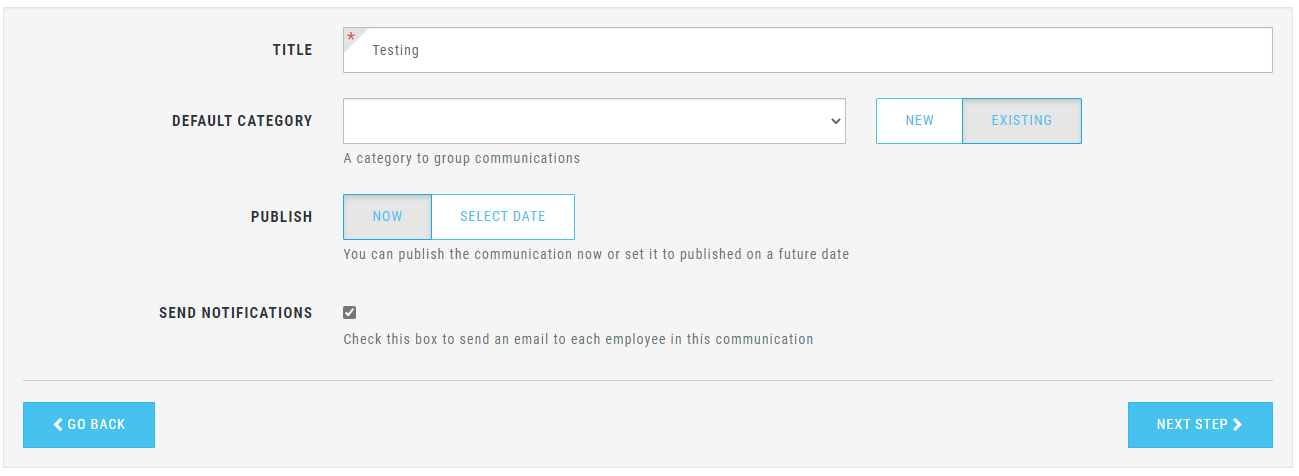
On the next screen you have the ability to add a title for the communication and set a category to group communications that you will be sending (this can be left blank if not needed). Here you can also set the publish date that you would like the communication to be visible to employees and also confirm if you would like employees to receive an email notification that a communication has been sent.
Lastly you are given the option to review your communication before pressing CREATE COMMUNICATION.
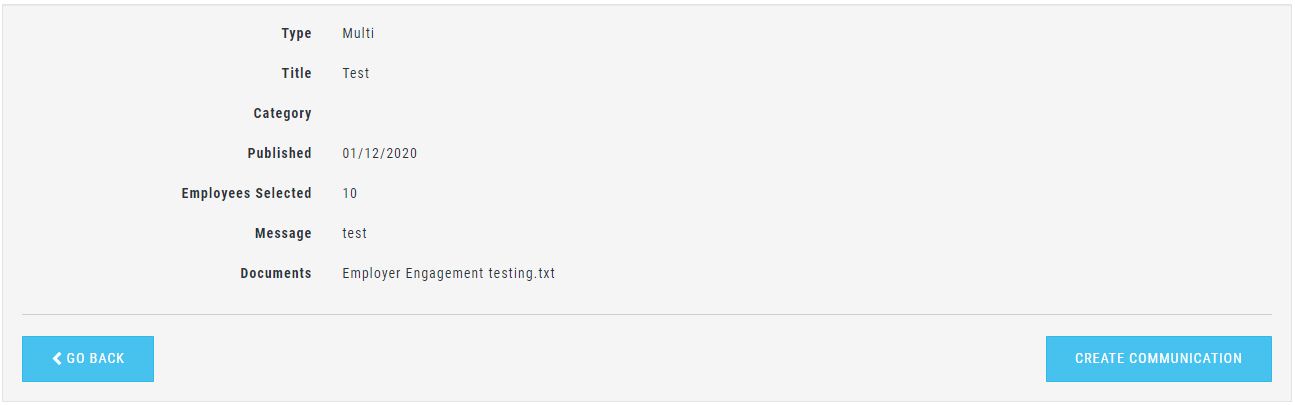
The communication will then be published to employees or schedule for publishing if a future publish date has been set.