
Enabling PayDashboard Rewards – Employer Instructions
Follow these instructions to enable PayDashboard Rewards.
Note: In order to manage content you must have administrator rights to "Manage Content". Please contact your super-user if you are unable to manage content and think that you should.
- Log in as an Employer User.
- From your dashboard, click on MANAGE and BENEFITS in the navigation bar.
Note: If you cannot see this option then you do not have rights to manage content and will need to request this from your super-user.
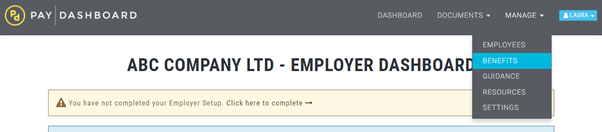
- Your content preferences will be displayed.
- You will see one of two options for PayDashboard Rewards.
Rewards Included in Package


If you see the option “PayDashboard Rewards (Included in Package)” then you do not need to do anything. PayDashboard Rewards is already enabled on your account. You can choose to turn it off by selecting “N” under preference.
Rewards Employer Opt-In

This means that Rewards is not yet visible to your employees. You will need to request an access code from your payroll provider, or email support@paydashboard.com to request a code. Then follow the steps below to enable Rewards.
ENABLING SCHEME CONTENT WITH EMPLOYER INFORMATION
- Click on the EXTRA INFORMATION next to the PayDashboard Rewards option.
- Enter the Rewards access code and press SUBMIT.
- Once the information has been submitted, the yellow warning icon will disappear. You can still click on the Extra Information button to view and amend your information if required.
- Click "Y" to enable the content.
- Click Save Changes to apply the settings.
- PayDashboard Rewards is not available to your employees.
The changes will take about 10 minutes to update throughout the system.